Showing posts with label Jenkins. Show all posts

Monday, September 7, 2026

How to Skip Integration Tests in Maven but Run Unit Tests

How to Skip Integration Tests in Maven but Execute Unit Tests

It was not so easy when I was trying all the possible options and lost 3 hours of my valuable time. It is really very frustrating when you are trying to do something and it is not happening within your expected time.

This happened to me when I was trying to build the project without executing the integration tests. My scenario was to skip only the integration tests, but the unit test cases must still be executed.

I Googled almost many links, but had no luck. Finally, the solution worked for me with the below pom.xml configuration.

Add the below tag into your pom.xml:

<build> <plugins> <plugin> <groupId>org.apache.maven.plugins</groupId> <artifactId>maven-surefire-plugin</artifactId> <version>2.18.1</version> <configuration> <excludes> <exclude>**/*IntegrationTest.java</exclude> </excludes> </configuration> </plugin> </plugins> </build>

Here you can use the <exclude> tag and mention any test class pattern that you want to skip.

For example, if your Java class name contains ITest.java (i.e. MyMethodITest.java):

<exclude>**/*IT*.java</exclude>

Or:

<exclude>**/*AnyTestClasses.java</exclude>

Not only integration tests, you can skip any test classes using the <exclude> tag, but you need to configure the pom.xml properly.

In the Maven command, you can use the normal command as below:

mvn clean install

Note: Be careful about the plugin version because the configuration may behave differently with different versions. Make sure the version you are using supports the configuration you need.


How to Skip Test Cases in Maven Build

You can skip the test in two following ways :-

By configuring the Pom.xml , if you are using surefire plugin then you can configure as below. 


<build>
    <plugins>
      <plugin>
        <groupId>org.apache.maven.plugins</groupId>
        <artifactId>maven-surefire-plugin</artifactId>
        <version>2.18</version>
        <configuration>
          <skipTests>true</skipTests>
        </configuration>
      </plugin>
    </plugins>

  </build>

For specific module test you can create profile in pom.xml for specific environment and it will help to skip the test cases.You can skip this specified profile "noTest".

<profiles>
    <profile>
      <id>noTest</id>
      <activation>
        <property>
          <name>noTest</name>
          <value>true</value>
        </property>
      </activation>
      <build>
        <plugins>
          <plugin>
            <groupId>org.apache.maven.plugins</groupId>
            <artifactId>maven-surefire-plugin</artifactId>
            <version>2.4.2</version>
            <configuration>
              <skipTests>true</skipTests>
            </configuration>
          </plugin>
        </plugins>
      </build>
    </profile>
  </profiles>

By using Command Line :- 


1) -Dmaven.test.skip=true

2) -DskipTests ( The values can be true/false) 

Example - 


1 ) mvn clean install -DskipTests=true

2 ) mvn clean install -Dmaven.test.skip=true

How to Create a Maven Job in Jenkins

As we know Jenkins is a tool  , and its used for build and release any project.There are many such tools are available i.e. Hudson.  For creating job/project on Jenkins below steps/screen shots need to follow.

Step 1 - Login & Dashboard

Login to Jenkins with valid credential and you are in Dashboard.


Step 2 - Create Job

Click New Item (left side menu) to create a new Job/Project . Provide the Job Name as per your project requirement. Here this example my job name is "HelloWorld_Job".


Here in the above image many options are available for creating many kind of job. Also you can copy any existing job instead of creating a new. You can select Copy Existing Items and provide the existing job name inside the text box.


Step 3 - Job Configuration


There are few certain configuration is required for this job execution. For building any job we need few configuration and commands as below.


You need to configure the source code location from which you are going to build.In the below image I have used "Git" as source code management tool. You can use any source code management tool like SVN, CVS ,etc. And the important part of this configuration is the location of your project . So, make your the location you have provided is correct and relevant.


Then  there are few more setup is required make this job elegant and accurate. But these options/settings are fully optional. Read all the settings carefully and configure as per you needs.Some useful configurations as below.


As the part of configuration the major part is maven command for execute the build. The screen shot below shows the configuration about maven command for goal. This project is a maven project and we need maven command for build this job/project. 


Common maven commands which is used for a clean build is "mvn clean install". Also there are many other additional commands which will help you to achieve your goal.Read more here about Maven.


Step 4 - Start Build 


The final step is to start the build. Once all the above steps are completed and you are ensure about the configuration , then you can do the build . The build execution will provide you the artifacts i.e. jar ,war,ear, etc.


 If the job execution is success, the you can go for deployment. Now you are done with this job.


Enjoy the Build and Release process.

Thursday, September 3, 2026

AWS CloudFront Access Denied: CreateInvalidation Operation

If you are getting Access Denied when calling the CreateInvalidation operation from AWS CLI, it must be a permission issue for that user.

In this post, I am using the Jenkins pipeline to build and push the artifacts into S3. I am using CloudFront as the Content Delivery Network (CDN) and hosting my website in Route 53.

When I am trying to invalidate the CloudFront Distribution cache from the CLI, I am getting the error below. I thought adding a screenshot would provide more visibility, so I have added it below.

Error Log:

A client error (AccessDenied) occurred when calling the CreateInvalidation operation: User: arn:aws:iam::xxxxxxxxxxx:user/yyyy is not authorized to perform: cloudfront:

The AWS CLI commands I am using are:

aws configure set preview.cloudfront true

aws cloudfront create-invalidation --distribution-id UJH89JKKMOVY340 --paths "/*"


Resolution:

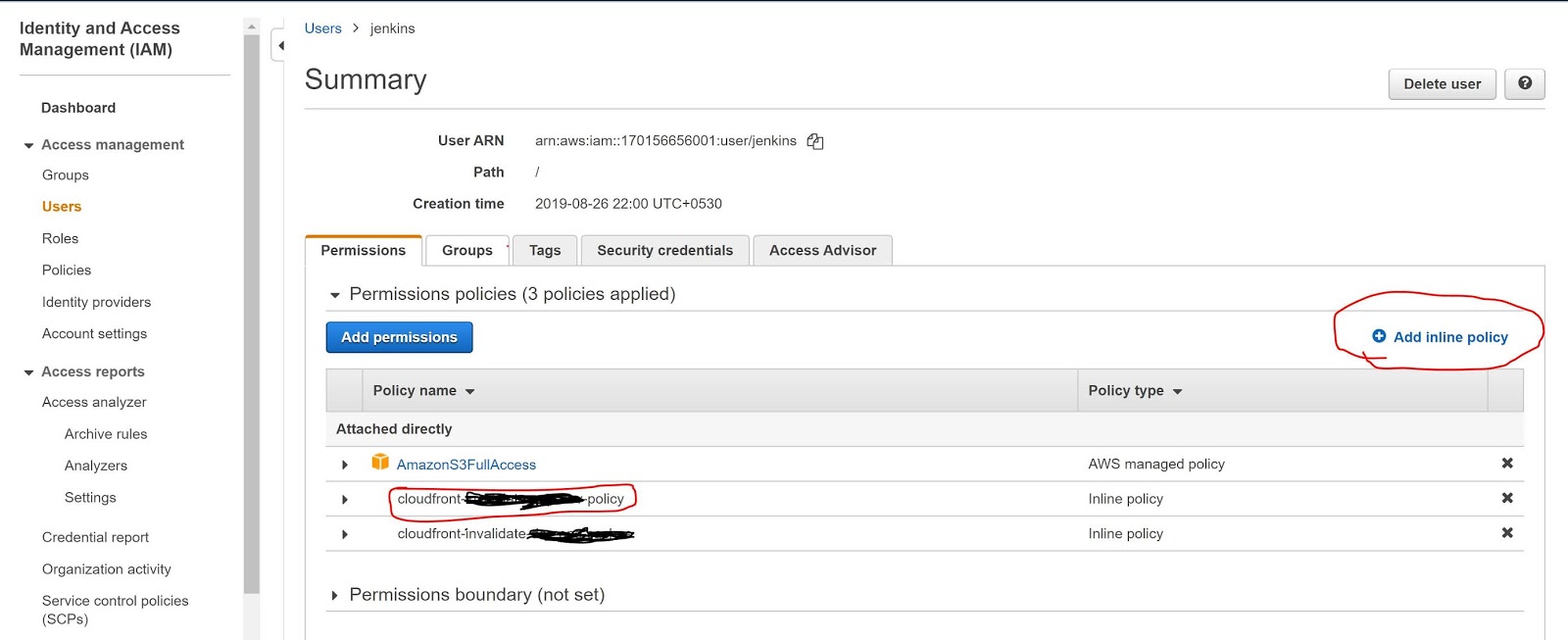
Add the CreateInvalidation permission to that user. Below are the steps to add the permission.

  • Go to Identity and Access Management (IAM).

  • Go to Users and find your username. In my case, it is Jenkins.

  • Then add a new Inline policy, as shown in the screenshot below.


  • Now add the below policy into the JSON policy editor. Below the screenshot.

Policy JSON:-


{
    "Version": "2012-10-17",
    "Statement": [
        {
            "Sid": "VisualEditoro",
            "Effect": "Allow",
            "Action": "cloudfront:CreateInvalidation",
            "Resource": "arn:aws:cloudfront::17088938460999:distribution/UJH89JKKMOVY340"
        }
    ]
}


Sample Screenshot:-


Now, it's working fine. I can see the Jenkins logs below.

Jenkins Success Log:-

; perhaps you meant to use ‘PATH+EXTRA=/something/bin’?
+ aws configure set preview.cloudfront true
[Pipeline] sh
Warning: JENKINS-41339 probably bogus PATH=/var/lib/jenkins/tools/jenkins.plugins.nodejs.tools.NodeJSInstallation/node-v10.16.3-linux-x64/bin:/var/lib/jenkins/tools/hudson.model.JDK/JDK8-152/bin:$PATH:/usr/local/bin:$MAVEN_HOME/bin:/usr/local/bin:/var/lib/jenkins/tools/hudson.tasks.Maven_MavenInstallation/mvn/bin:/usr/sbin:/usr/bin:/sbin:/bin; perhaps you meant to use ‘PATH+EXTRA=/something/bin’?
+ aws cloudfront create-invalidation --distribution-id UJH89JKKMOVY340 --paths '/*'
{
    "Invalidation": {
        "Status": "InProgress", 
        "InvalidationBatch": {
            "Paths": {
                "Items": [
                    "/*"
                ], 
                "Quantity": 1
            }, 
            "CallerReference": "cli-1588239578-85708"
        }, 
        "Id": "I3HILN71CKWOV4", 
        "CreateTime": "2020-04-30T09:39:38.919Z"
    }, 
    "Location": "https://cloudfront.amazonaws.com/2019-03-26/distribution/UJH89JKKMOVY340/invalidation/I3HILN71CKWOV4"
}


Hope this will help you. 

Monday, October 5, 2015

Jenkins Maven Error: Unknown Lifecycle Phase "mvn"


[ERROR] Unknown lifecycle phase "mvn" You must specify a valid lifecycle phase or a goal in the format.

This Jenkins issue is very common, while configuring the maven job in Jenkins. One of my peer faced this issue during her development. Then we investigate and fixed this issue.


Jenkins Configuration :-


Error Log :-

[INFO] BUILD FAILURE
[INFO] ------------------------------------------------------------------------
[INFO] Total time: 1.316 s
[INFO] Finished at: 2015-10-05T15:10:46+11:00
[INFO] Final Memory: 20M/491M
[INFO] ------------------------------------------------------------------------
[ERROR] Unknown lifecycle phase "mvn". You must specify a valid lifecycle phase or a goal in the format <plugin-prefix>:<goal> or <plugin-group-id>:<plugin-artifact-id>[:<plugin-version>]:<goal>. Available lifecycle phases are: validate, initialize, generate-sources, process-sources, generate-resources, process-resources, compile, process-classes, generate-test-sources, process-test-sources, generate-test-resources, process-test-resources, test-compile, process-test-classes, test, prepare-package, package, pre-integration-test, integration-test, post-integration-test, verify, install, deploy, pre-clean, clean, post-clean, pre-site, site, post-site, site-deploy. -> [Help 1]
[ERROR]
[ERROR] To see the full stack trace of the errors, re-run Maven with the -e switch.
[ERROR] Re-run Maven using the -X switch to enable full debug logging.
[ERROR]
[ERROR] For more information about the errors and possible solutions, please read the following articles:
[ERROR] [Help 1] http://cwiki.apache.org/confluence/display/MAVEN/LifecyclePhaseNotFoundException
[JENKINS] Archiving /opt/jenkins_dev/workspace/MYAPP_BIZ/pom.xml to au.com.mycompany.group.lar.testing.biz/Myapp/0.0.1-SNAPSHOT/Myapp-0.0.1-SNAPSHOT.pom
channel stopped
Started calculate disk usage of build
Finished Calculation of disk usage of build in 0 seconds
Started calculate disk usage of workspace
Finished Calculation of disk usage of workspace in 0 seconds
Finished: FAILURE


Solution :-

Its a simple mistake, that while configuring the jenkins jobs maven goal, we are simple trying with mvn clean install  , which is a against maven life cycle policy.

So , we fixed this by removing the mvn  . Correct command is clean install. Then it worked.